When you find your WordPress site hacked what to do in the first hour is mostly about stopping the damage, not fixing the code. Take the site offline, tell your host, change every password and log everyone out, then take a copy of the site as it is before anyone starts deleting files. The clean-up, the search warning and any reporting come after that, and they go much more smoothly when the first hour was done in the right order.
Teams usually find out by accident. Someone clicks a link to the site and lands on a spam page, a customer emails to say their browser blocked it, or the host sends a suspension notice. It’s a horrible moment, especially the week before a show. The good news is that when a WordPress site gets hacked it can almost always be recovered, and the steps below work whether you fix it yourself or hand it to someone.
How to tell if your WordPress site has been hacked
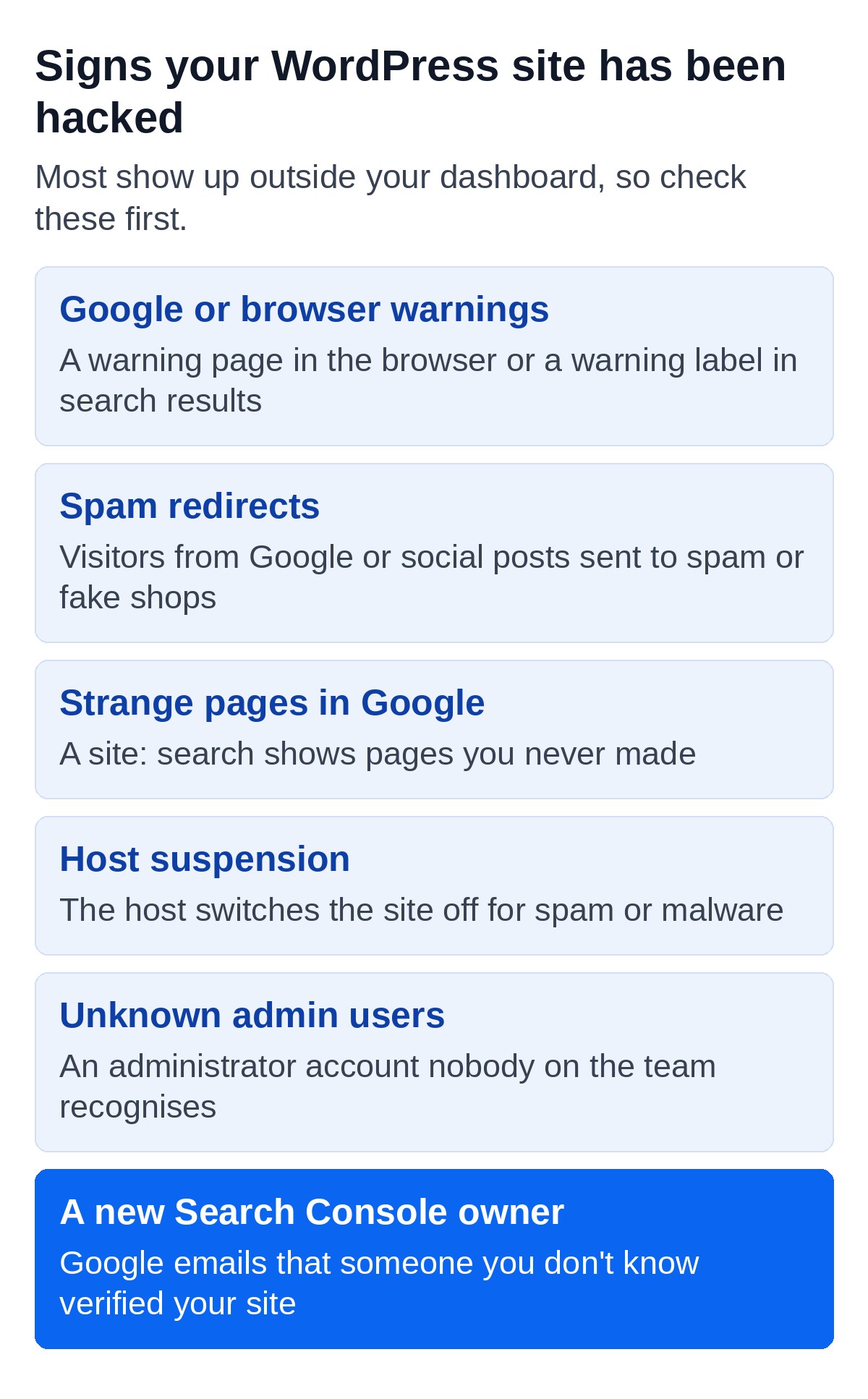
You can usually tell your WordPress site has been hacked from what visitors, search engines or your host report, rather than from anything you see in the WordPress dashboard. A hacker builds the hack to stay hidden from the site owner, so the signs often turn up somewhere else first.
The WordPress.org guide for hacked sites and Google’s own guides list the clearest warning signs.
- Google or your browser shows a warning. A warning page in the browser, or a warning label under your listing in Google search results.
- Visitors get sent somewhere else. Links from search results or social posts redirect to spam, phishing pages or fake shops, often only for some visitors.
- Strange pages appear in search results. Search
site:yourdomain.co.ukand look for pages you never made, often in Japanese or full of brand names. - Your host suspends the site. Hosts switch off sites that send spam or spread malware.
- New WordPress users you didn’t add. A WordPress admin account nobody recognises is one of the surest signs of all.
- Someone new owns your Search Console. You get an email when a new owner is verified, and spammers add themselves to change your settings.
Don’t be reassured if the site looks fine to you. Google’s own guide to the Japanese keyword hack explains that hacked pages can show you a 404 while showing search engines the spam, and the URL Inspection tool in Search Console is how you see what the crawler actually gets. Patchstack’s 2026 WordPress security report found the most common WordPress malware families in 2025 did exactly this, using malicious code to show clean pages to site owners and security scanners while sending real visitors to phishing sites or fake shops.
WordPress site hacked and what to do in the first hour
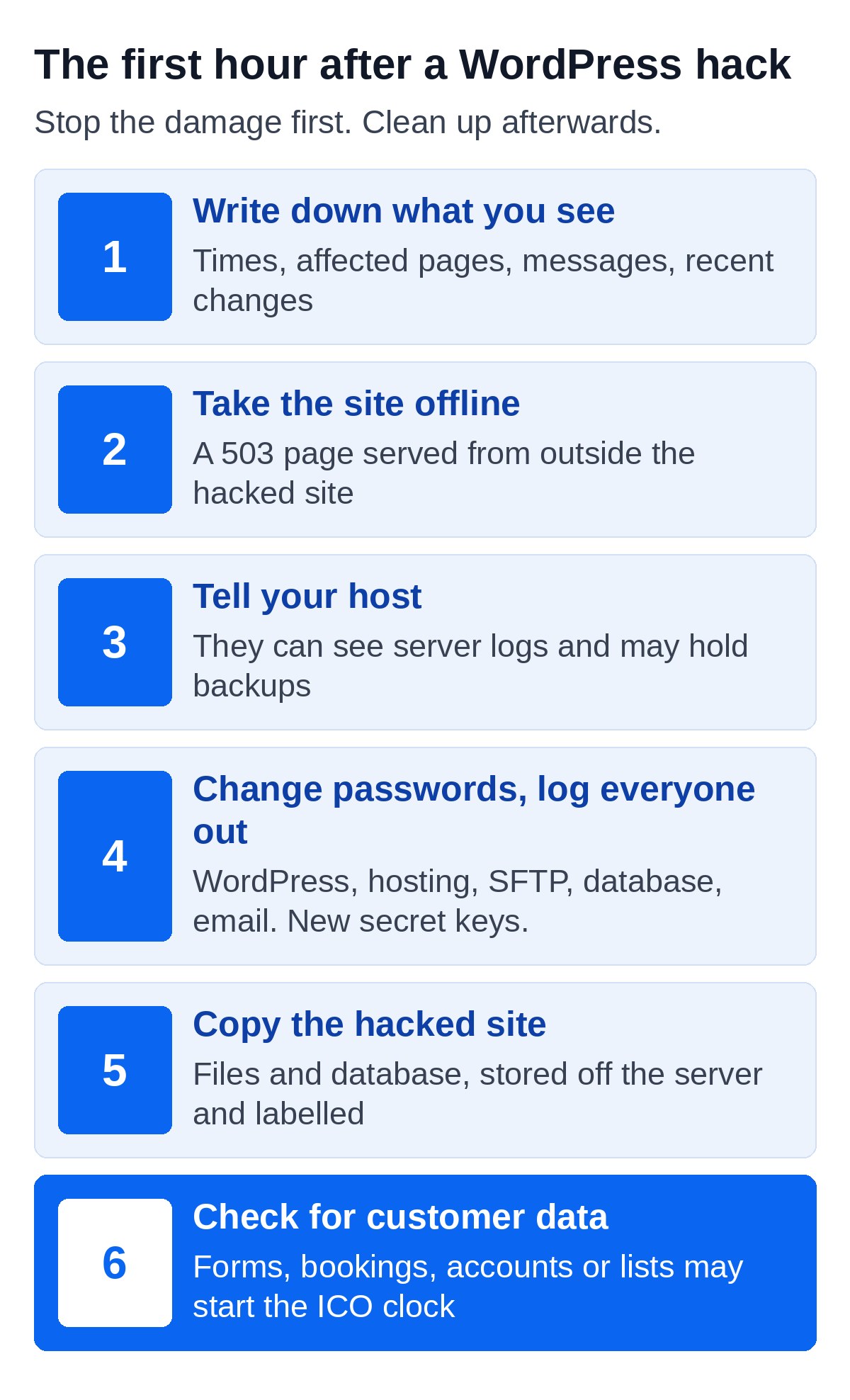
In the first hour, stop the hack spreading and lock the attacker out, in this order. Don’t start deleting WordPress files or restoring old backups yet, because that can destroy the evidence you need to find out how the hacker got in.
1. Write down what you’re seeing
Spend five minutes writing down what you’ve seen, where and when, before you change anything. Note the time you noticed it, which pages are affected, any messages from your host or Search Console, and anything that changed on the site recently, like new WordPress plugins or a WordPress theme update. WordPress.org calls this the start of your incident report, and it saves a lot of guesswork later.
2. Take the site offline
Take the site offline so visitors stop seeing the spam pages. Google’s guidance is to serve a temporary 503 page from outside the infected site, either from your host or a separate server, because harmful content can still reach visitors if the infected WordPress installation serves that page itself, so a maintenance mode plugin isn’t enough. The same quarantine guide also says taking a hacked site offline for a short time is unlikely to affect how it ranks later, so don’t let worries about SEO keep those pages live.
If you take bookings or sell tickets through the site, put a short note on your social channels and email footer so customers know where to go in the meantime.
3. Tell your WordPress hosting company
Contact your host straight away, because they can see server logs you can’t and their monitoring may already have spotted something wrong. On shared hosting the hack may have reached multiple sites on the same server. Your host can also set up the 503 page for you, and tell you whether they hold their own backups and how far back they go.
4. Reset every password and secret key
Reset every password that touches the site, and that means more than your own login. It covers the passwords for your WordPress admin accounts, the hosting control panel, SFTP or FTP, the database, and the email account that receives password resets. Use long, unique WordPress passwords from a password manager and switch on two-factor authentication wherever it’s offered. The ICO’s own advice is that you can contain a cyber incident by changing all passwords and making sure your staff do the same.
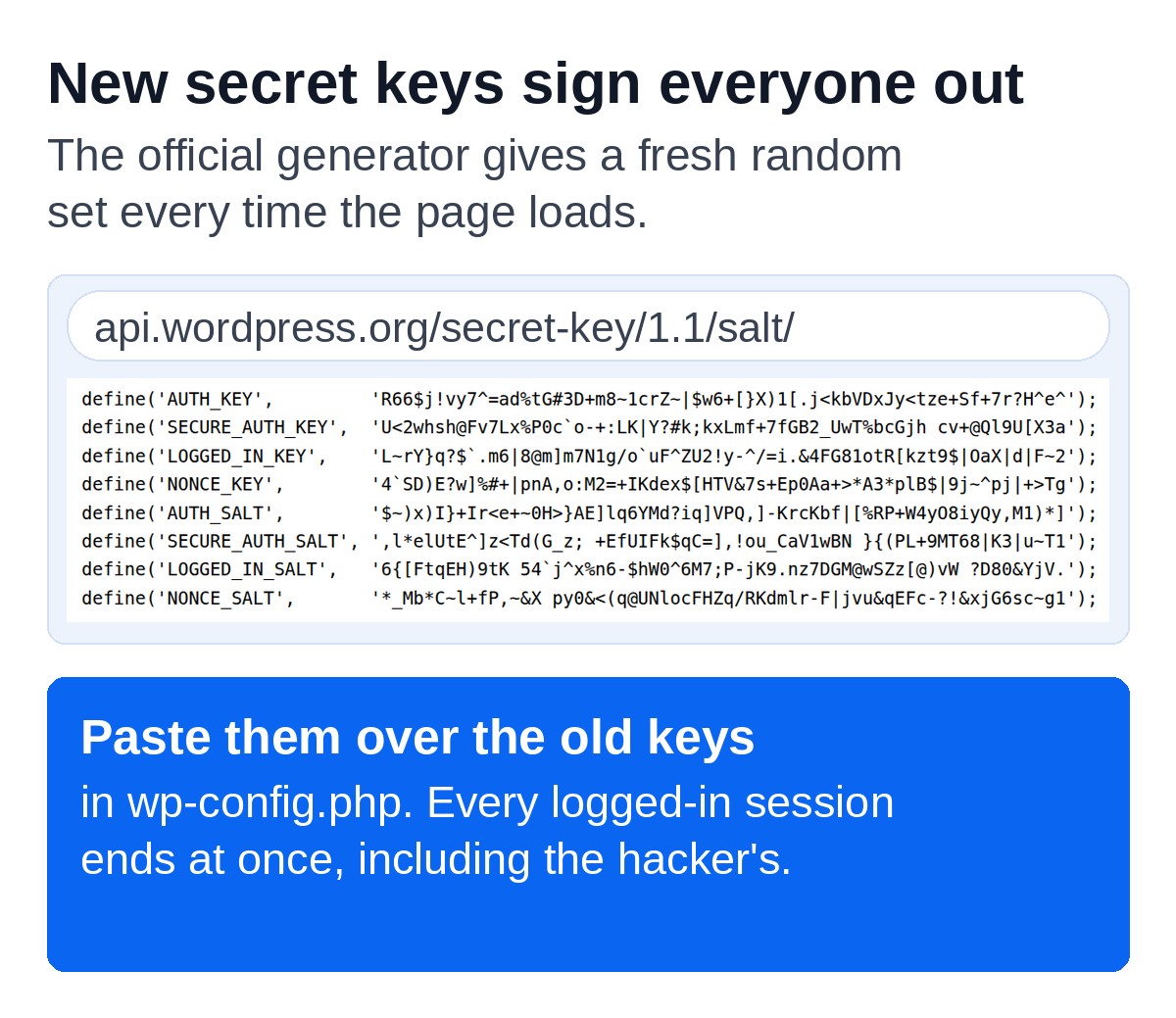
Changing passwords doesn’t log out anyone who is already signed in. To do that, WordPress.org says to replace the secret keys in your wp-config.php file with a fresh set from the official WordPress key generator. Pasting them in signs out every session at once, including the hacker’s.
While you’re in the WordPress dashboard, open Users and check every administrator. Write down any account you don’t recognise, then delete it. Do the same in Search Console under Settings and Users and permissions.
5. Back up the infected site files and database
Before anyone cleans anything, take a full backup of the WordPress files and the WordPress database exactly as they are now. It sounds odd to back up an infected site, but WordPress.org recommends it, and it’s the only way to look back at how the hacker got in if the clean-up goes wrong. Store it somewhere off the server and label it clearly so nobody restores it by mistake.
6. Check whether customer data was involved
Finally, ask whether the hacker could have reached any personal client or customer data, like enquiry form entries, bookings, customer accounts or a mailing list. If they could, a legal clock may already be running, which is covered further down.
How to fix a hacked WordPress site
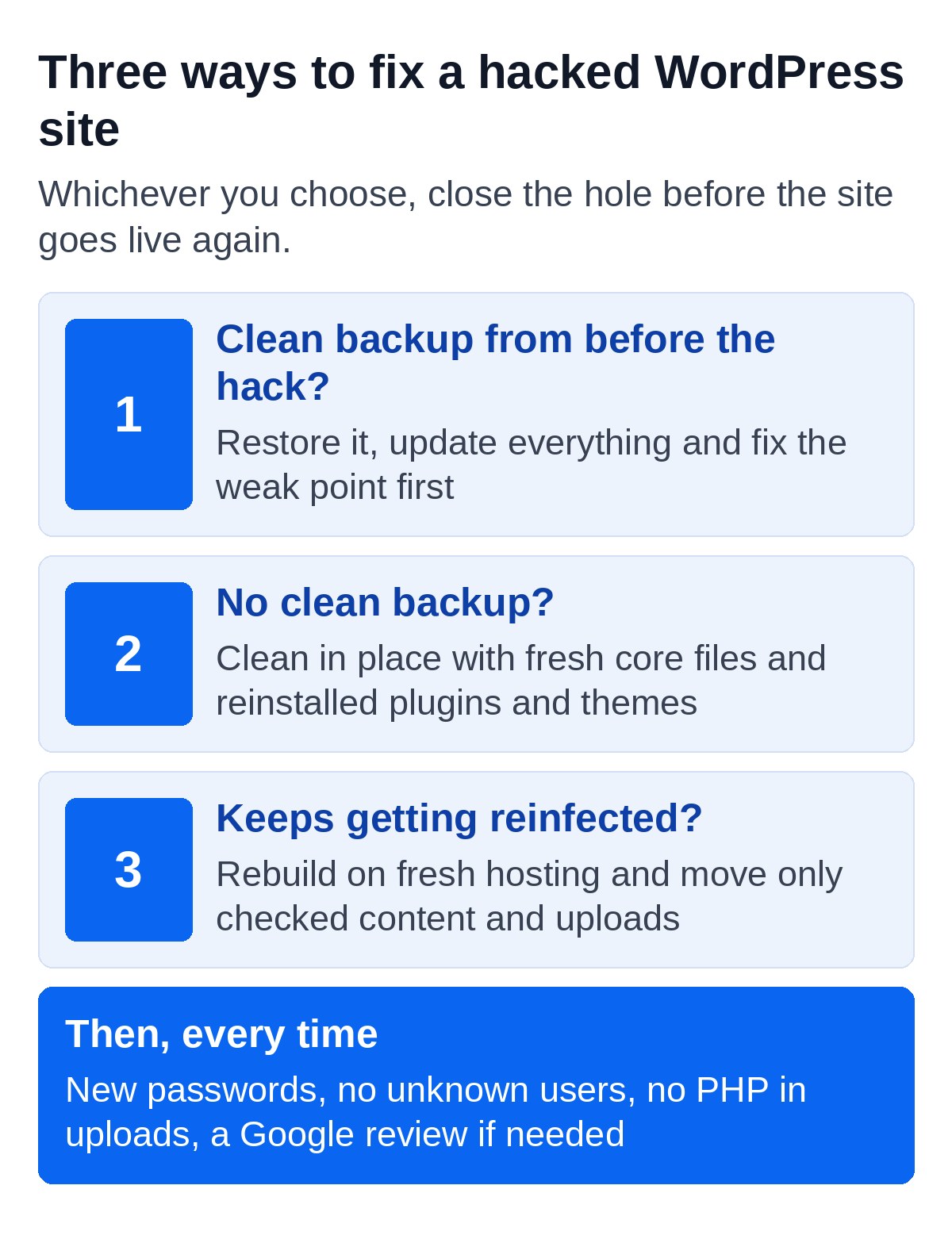
You fix a hacked WordPress site in one of two ways. Restore a backup from before the hack and then close the hole, or clean the infected site file by file. Either way the job isn’t finished until you know how the hacker got in, because a site cleaned without closing the source of the hack is often hit again the same way.
| Approach | What it involves | Best for |
|---|---|---|
| Restore a clean backup | Put back a copy from before the hack, then update everything and fix the weak point before going live | Sites with regular off-site backups and a clear date when the problems started |
| Clean the site in place | Replace WordPress core with fresh files, reinstall plugins and themes, then search the rest for anything added | Sites with no clean backup, or a hack that may have been there for months |
| Rebuild on fresh hosting | Move only the content and uploads onto a new install after checking them | Badly damaged sites, or ones that keep getting reinfected |
Reinstall WordPress core files, plugins and themes
If you clean in place, reinstall WordPress from fresh copies of the core files in the WordPress repository. WordPress.org says to use the same version of WordPress you were running, uploading the wp-admin and wp-includes folders by SFTP rather than using the reinstall button in the dashboard. The dashboard option only overwrites existing files, and hacks usually add new ones. Then reinstall every plugin and theme from its original source, so each one is the latest version, delete anything you don’t use, and look through wp-content/uploads for PHP files, which should never be in there.
Be careful with backups too. Patchstack’s report says hackers increasingly plant small uploader scripts so they can get back in after a clean-up, and one malware family it tracked runs in the server’s memory and rewrites files the moment they’re restored. That’s why a restore on its own often isn’t enough, and why the hole has to be closed before the site goes back online.
Scan for malware with WordPress security plugins
A security scan helps, but it can’t prove a site is clean. WordPress.org suggests using both security plugins such as Wordfence and an outside scanner such as VirusTotal, because each finds different things.
Why WordPress sites get hacked
Most WordPress security problems start in outdated WordPress plugins, not in WordPress itself. Plugins that aren’t updated regularly leave a site vulnerable to WordPress attacks that are already public. In Patchstack’s figures for 2025, 11,334 new vulnerabilities were found across WordPress, up 42% on 2024, and 91% of them were in plugins. Only 6 were in WordPress core, and those were low priority.
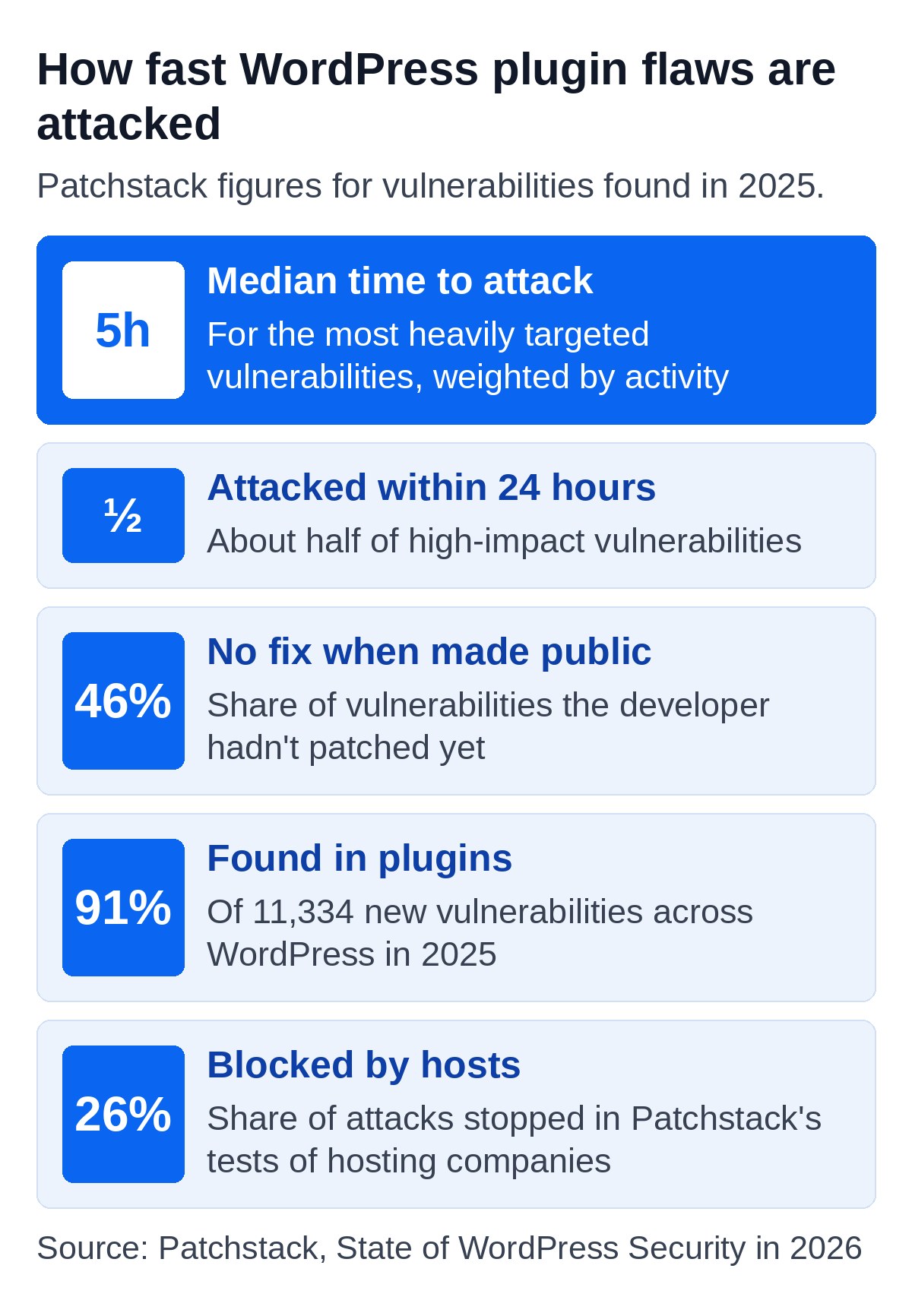
The speed is what catches teams out. Patchstack found that about half of high-impact vulnerabilities were attacked within 24 hours of going public, and the most heavily targeted ones within a median of 5 hours. 46% had no fix from the plugin developer when they were made public, and in Patchstack’s tests of hosting companies only 26% of attacks were blocked by the host. Updating plugins whenever someone remembers leaves a site open to attack for weeks at a time, so update your WordPress plugins regularly or have someone do it for you.
The other common way in is a reused or leaked password, often on an old account that still has access to your WordPress admin after someone has left.
Getting the security warning removed from search
Google removes the hacked site warning once you’ve cleaned every affected page and asked for a review in Search Console. Open the Security issues report, check the sample pages it lists, and clear the problem across the whole site, because cleaning only some pages won’t get you a partial return to search results.
When everything is clean, select Request Review and explain what was wrong, what you did and what the result was. Most reviews take several days or weeks. Don’t send a second request while the first is open, because resubmitting before a site is properly clean can slow the next review down.
While you wait, use the URL Inspection tool on a few of the spam URLs to check the crawler now gets a 404 or your real page, and remove any spam sitemaps the hacker added under Sitemaps.
Reporting a hacked website in the UK
If personal data could have been exposed, you may need to report it to the ICO within 72 hours of finding out. The ICO’s breach reporting guidance says you must assess the risk to the people affected, report it if a risk is likely, and tell those people directly if the risk is high.
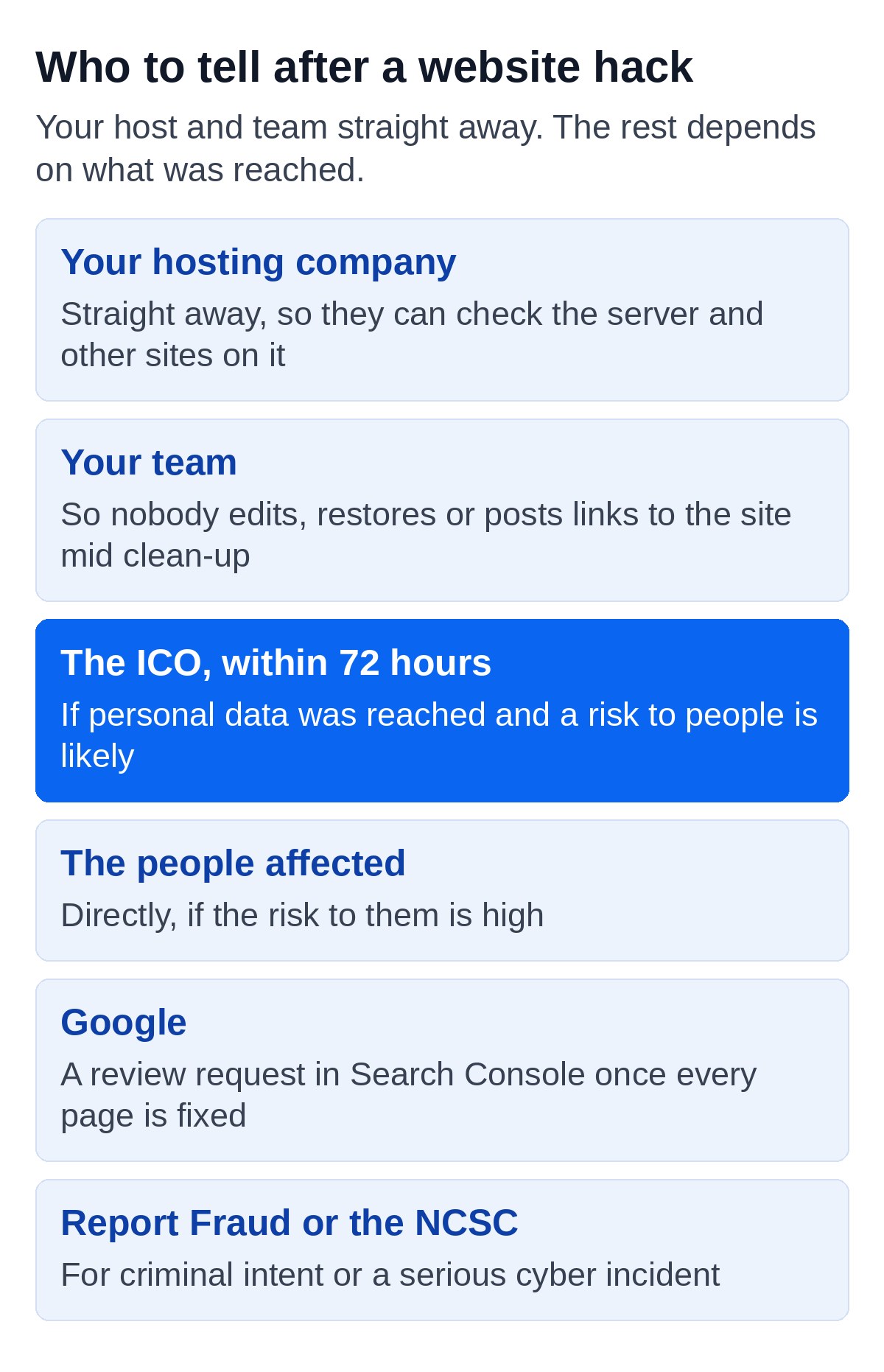
The ICO’s 72 hours guide for small organisations makes two points worth knowing. The clock starts when you discover the breach, not when it happened, and you should start a log even if you end up not needing to report. If you’re not sure, its breach advice line is 0303 123 1113.
The same ICO page says incidents with criminal intent can also be reported to Report Fraud, the UK’s national fraud and cybercrime reporting service, and serious cyber incidents to the National Cyber Security Centre. If only spam pages were added and no customer data was reachable, there’s usually nothing to report, but keep your log anyway.
How to secure your WordPress site and prevent another hack
Regular care, rather than a one-off clean-up, is the best protection. These habits protect your WordPress site by closing the doors hackers use most.
- Run WordPress updates every week. WordPress, your WordPress theme and your plugins, with a quick check afterwards that forms and bookings still work.
- Delete what you don’t use. Deactivated plugins can still be attacked, so remove them.
- Use two-factor authentication. On every administrator account, and remove accounts for anyone who has left.
- Keep off-site backups and test them. A WordPress backup you’ve never restored is a hope, not a plan.
- Watch the site. Uptime monitoring, security monitoring and Search Console alerts tell you about trouble before your customers do.
This is exactly what a website maintenance plan covers. Ours includes managed WordPress hosting for most sites, updates WordPress, themes and plugins every week, backs up the database every 6 hours and files every day, and checks every 5 minutes that the site is up. Hack and malware repair is included on every plan at no extra cost, and the plans run from £150 a month plus VAT, monthly, cancel any time. Our guide to how much website maintenance costs in the UK compares that with doing it yourself or paying by the hour.
When to get WordPress support and maintenance
Get help recovering a hacked site straight away if it takes bookings, payments or enquiries, if customer data may be involved, or if nobody on the team is comfortable working in files and the database. A clean-up done halfway can be worse than leaving it, because it removes the obvious spam and leaves the hacker a way back in.
Our WordPress support team removes the infection, closes the hole it came through and restores clean files, then keeps the site updated so it doesn’t happen again. If you’re not sure whether your site has been hit, or want to know how exposed it is before something goes wrong, our free website audit checks your site and shows you what to fix first, within one working day.
Frequently asked questions
Can a hacked WordPress site be fixed?
Yes, almost always. Most hacked WordPress sites can be cleaned or restored without losing content, as long as someone finds how the hacker got in and closes it. The sites that are hardest to recover are ones with no backups at all, where the hack has been sitting unnoticed for months and has spread into the database.
How long does Google take to remove a hacked warning?
Most reviews take several days or weeks after you select Request Review in the Security issues report in Search Console. You get an email when the review starts and another when it’s finished. Clean every affected page before you ask, because a request for a site that isn’t fully clean slows the next one down.
Will a security plugin clean a hacked WordPress site?
A security plugin can find and remove a lot of common malware, but it can’t promise the site is clean. Some infections hide from scanners or rewrite files after removal, and a plugin won’t close the hole that let the hacker in. Treat a clean scan as one check among several, alongside reviewing users, files and Search Console.
How do I know my WordPress site is clean after a hack?
A site is clean when an outside scan and a plugin scan both come back clear, there are no unknown users, no PHP files in uploads, the Security issues report in Search Console shows no issues, and the site stays that way for a few weeks. Keep checking Search Console and your user list for a while afterwards.